
Overview
If you see activity continuing in Contently (comments, @mentions, assignments, overdue items) but you receive no corresponding emails, email notifications may not be delivering as expected. Common symptoms include missing comment notifications and missing workflow alerts (for example, overdue or ready-for-action emails); in broader cases, users may also report missing password reset emails.
Solution
0) Confirm that the intended recipient has at least once logged into Contently and verified their email.
On the backend, the support team can check this via the following option and mark it as verified if needed:
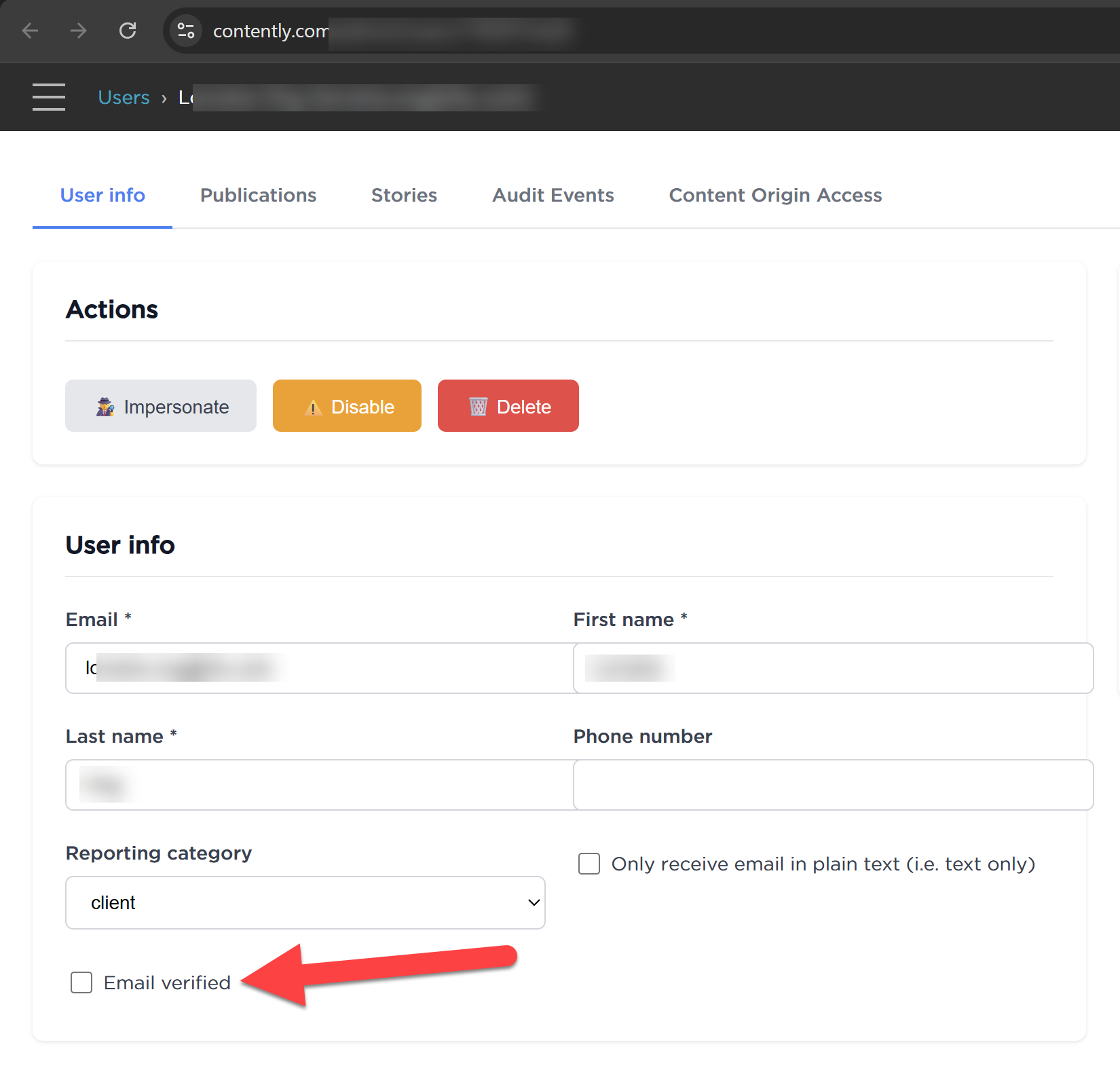
1) Confirm you’re checking the right mailbox and folders
Email clients and security tools often auto-sort automated notifications.
- Search your mailbox for messages from Contently and/or keywords like comment, overdue, or the relevant story title.
- Check all folders/tabs/filters, including:
- Spam/Junk
- Promotions / Updates (Gmail commonly files automated notifications under Updates)
- Quarantine (if your organization uses email security tooling)
If notifications are found in a filtered folder, update mailbox rules and allow-lists so Contently emails land in the Inbox.
2) Verify your Contently email notification settings are enabled
Email delivery also depends on per-user notification preferences.
- Sign in to Contently using the impacted user account.
- Open your email notification settings:
- Ensure notification toggles for the missing categories are enabled, especially:
- Comment notifications (required to receive comment/@mention emails)
- Other workflow-related email categories relevant to your role (for example, overdue and ready-for-action)
- Save changes.
- If a setting appears enabled but delivery is inconsistent, “reset” it:
- Toggle the setting off and save
- Toggle it on again and save
3) Confirm the correct Contently user account and email address (common root cause)
Notifications can appear “missing” when they are being sent to a different Contently account/email than the one you are monitoring (for example, two accounts with similar names or separate work vs. personal emails).
- Identify the exact email address tied to the Contently user that should receive notifications (for example,
<work_email>vs<personal_email>). - Confirm you are logged into the correct Contently account.
- If needed, ask an admin to confirm which user profile is assigned to the relevant publication/workflow and which email address is on that profile.
4) Whitelist Contently Domain
In some situations, users may need to reach out to their IT teams to whitelist emails from contently.com domain.